Cookies are small pieces of data that websites store on your browser. They often contain information related to your login session, preferences, and browsing history. There are situations where you might need to export your login cookies for automation, testing, or transferring data to another device. In this article, we’ll explore how to export login cookies from popular web browsers and save them as JSON files.
Below is list of Browsers and some ways on how to export but
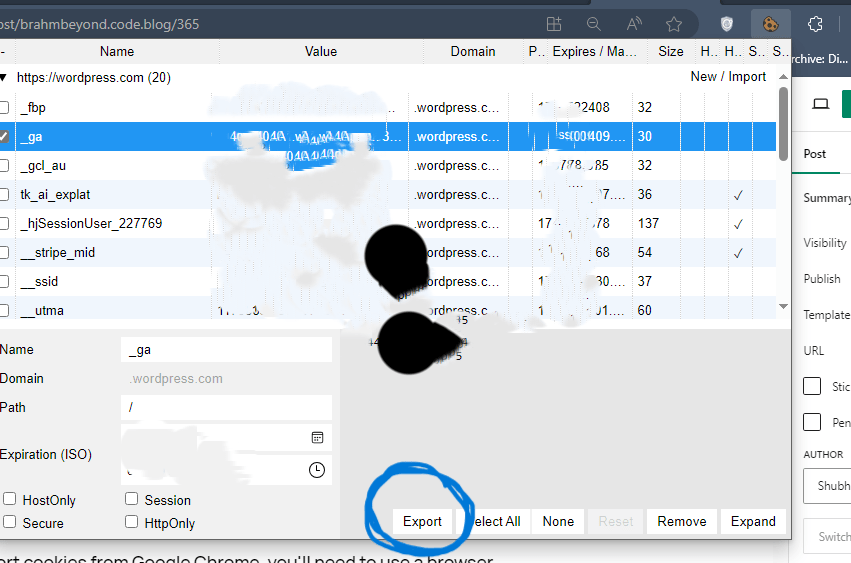
I personally use Cookies Editor extension , which I use on Edge. You need to install the extension and then Open the website of which you want to export cookies , run the extension, check the cookies you want to export and then click on the export Option.
1. Google Chrome:
To export cookies from Google Chrome, you’ll need to use a browser extension such as “EditThisCookie” or “Cookie-Editor.” Here’s how to do it using the “EditThisCookie” extension:
- Install the “EditThisCookie” extension from the Chrome Web Store.
- Once installed, navigate to the website for which you want to export cookies.
- Click on the “EditThisCookie” extension icon in the browser toolbar.
- In the extension popup, go to the “Export” tab.
- Click on the “Export” button to export all cookies from the current website in JSON format.
- Save the JSON file to your desired location on your computer.
2. Mozilla Firefox:
Firefox doesn’t have built-in support for exporting cookies, but you can use the “Cookie Quick Manager” extension to achieve this:
- Install the “Cookie Quick Manager” extension from the Firefox Add-ons website.
- After installation, open the extension by clicking on its icon in the browser toolbar.
- Go to the “Cookies” tab and select the cookies you want to export.
- Click on the “Export” button and choose JSON format.
- Save the JSON file to your computer.
3. Microsoft Edge:
Microsoft Edge also lacks built-in functionality for exporting cookies, but you can use extensions like “Cookie Editor” for this purpose:
- Install the “Cookie Editor” extension from the Microsoft Edge Add-ons website.
- Once installed, open the extension by clicking on its icon in the browser toolbar.
- Navigate to the website whose cookies you want to export.
- In the extension popup, go to the “Export” tab.
- Select the cookies you want to export and choose JSON as the export format.
- Save the JSON file to your computer.
4. Safari:
Exporting cookies from Safari is a bit more complex and typically requires using developer tools:
- Open Safari and navigate to the website for which you want to export cookies.
- Go to Safari > Preferences > Advanced and enable the “Show Develop menu in menu bar” option.
- Go to Develop > Show Web Inspector.
- In the Web Inspector, go to the “Storage” tab and select “Cookies” from the sidebar.
- Find the cookies related to the current website and manually copy them into a JSON file.
Conclusion:
Exporting your login cookies from a browser in JSON format allows you to store and manage them more efficiently. By following the steps outlined above, you can export your cookies from popular web browsers like Chrome, Firefox, Edge, and Safari, enabling you to back up your session data or transfer it to other browsers or devices as needed. Remember to handle your cookies with care and only share them with trusted parties.


 Brahm Beyond
Leave a comment