
Forgot your login password !! Well no worries as we can reset it
easily.
Important Note :-
This is for root user login . For non root user please see
How to reset Kali Linux password for non-root user.
This is for root user login . For non root user please see
How to reset Kali Linux password for non-root user.
Content :-
-
- Boot in GRUB menu
-
- Edit GRUB menu
- Change password
Boot in GRUB menu
Step 1.. Start your Kali machine.
Step 2.. Boot into GRUB menu ( Don’t worry if you don’t know what it means – It is
normally the window which loads when you start your machine.- See the
below image.) and
make sure to hit the up/down arrow keys to prevent the system
from entering into default mode.
normally the window which loads when you start your machine.- See the
below image.) and
make sure to hit the up/down arrow keys to prevent the system
from entering into default mode.
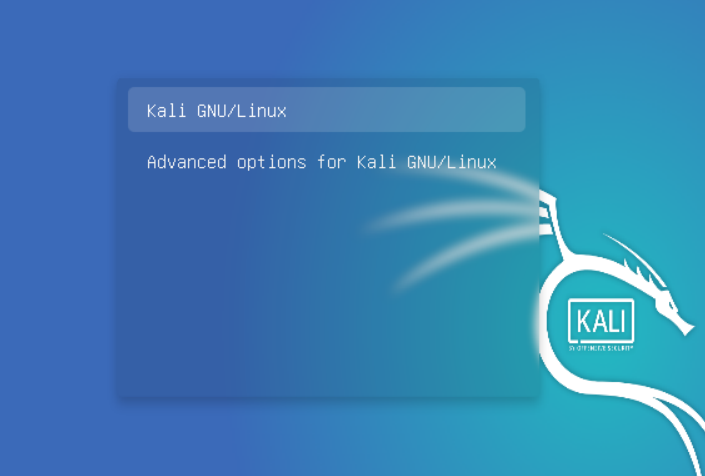 |
| KALI GRUB MENU |
Edit in GRUB menu
Step 1.. Select the ” Advanced Options for Kali
GNU/LINUX ” –
the second option there and press ‘ e ‘ to enter the edit mode. (
Remember to press ‘ e ‘ not to hit enter).
GNU/LINUX ” –
the second option there and press ‘ e ‘ to enter the edit mode. (
Remember to press ‘ e ‘ not to hit enter).
Step 2.. Now search for the line starting with “
linux ” as shown in image below and edit the ‘ ro ‘ to ‘ rw ‘.
linux ” as shown in image below and edit the ‘ ro ‘ to ‘ rw ‘.
Add ” init=/bin/bash ” – if this is not present.
Note :-
Here I’m providing 2 images one with ” init=/bin/sh ” prewritten and one without it As it will differ with the Kali version you are having. So don’t
worry if its not prewritten just add it in yours.
Here I’m providing 2 images one with ” init=/bin/sh ” prewritten and one without it As it will differ with the Kali version you are having. So don’t
worry if its not prewritten just add it in yours.
And make sure not to edit any other code .
Roundoff you should have ‘ rw init=/bin/bash ‘ there.
Step 3.. Press F10 to save the changes.
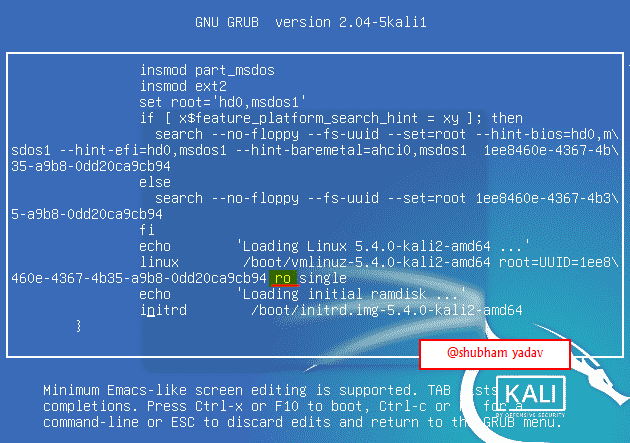 |
|
Edit in GRUB menu – v 2.04-5kali1
|
 |
|
Edit in GRUB menu – v 2.04-17kali1
|
Change Password
Step 1.. Type – passwd
Step 2.. Type the new
password.
password.
Step 3..
Retype the new password. And now Your password is Updated.
Retype the new password. And now Your password is Updated.
Now restart your
machine.
machine.
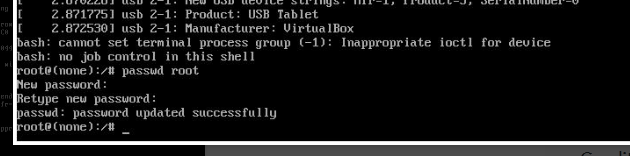 |
| Change Password |



 Brahm Beyond
Leave a comment